
Free online JPG merger — combine multiple JPEG images into one photo instantly. Merge pictures side by side, stacked vertically, or in a grid collage. No upload, no account, no watermark. Works on any browser.
Drop your images here
Supports JPG, PNG, WebP — drag & drop or click anywhere to browse
⚙️ Merge Settings
Merged Image Ready
DownloadWhat Is a JPG Merger?
A JPG merger is a tool that takes two or more photos and joins them together into one single image. Think of it like putting puzzle pieces side by side on a table except instead of puzzle pieces, you are using your own photos. The result is one image file that shows all your pictures arranged the way you want.
Merger JPG does this job right inside your web browser. You do not need to download any app or pay for any software. You just open the page, drop in your photos, pick a layout, and click merge. The whole thing is done in just a few seconds.
The best part is that your photos never travel to any server on the internet. Everything happens on your own device. That means your pictures stay completely private, the tool works fast even on a slow internet connection, and there is no waiting around for files to upload or download.
How to Merge JPG Images Online-Step by Step
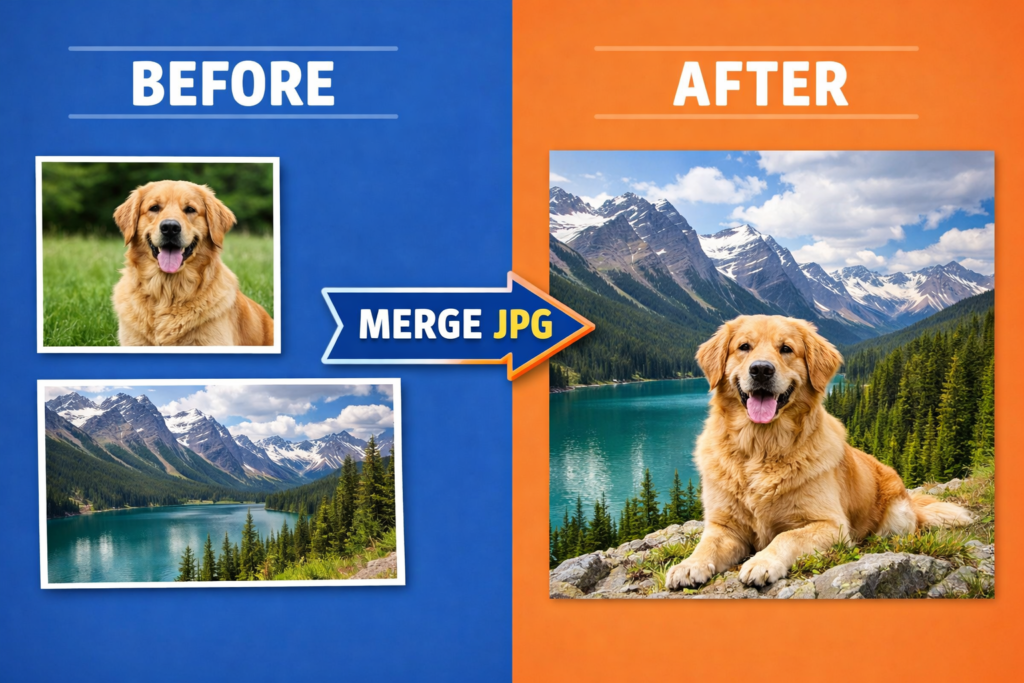
Merging photos with Merger JPG takes less than a minute. Here is exactly what you do:
- Open Merger JPG in your browser on any device phone, tablet, or computer. No app download needed and no account to sign up for.
- Click the upload area or drag and drop your image files right onto the page. You can add JPG, PNG, or WebP photos. Pick two or more images to combine.
- Look at the thumbnail previews that appear. Each image shows a number badge so you can see what order they will be placed in. Click the X on any image to remove it.
- Choose your layout: Side by Side places images left to right, Stacked places them top to bottom, and Grid arranges them in rows and columns like a photo collage.
- Use the settings panel to adjust the gap between images, the output quality, the background color, and the file format (JPG, PNG, or WebP).
- Click the Merge Images button. Your combined photo appears as a preview. Click Download to save it to your device.
| Pro Tip: If you want the sharpest result with no quality loss, set the quality slider to 100% and choose PNG as your output format. |
Which Layout Should You Choose?
Merger JPG gives you three ways to arrange your photos. Each one works best for a different situation:
| Layout | Best For | Example |
| Side by Side | Before/after, comparisons, two-image pairs | Two portraits placed left and right |
| Stacked | Screenshots, step-by-step guides | Three screenshots stacked top to bottom |
| Grid | Collages, product angles, travel photos | Four vacation photos in a 2×2 square |
Side by Side
This layout places your images next to each other from left to right. All images are scaled to the same height so they line up perfectly. This is the best layout for before-and-after photos, product comparisons, or any time you want people to look at two images at the same moment.
Stacked
This layout places images on top of each other from top to bottom. All images are scaled to the same width. This works great for stacking screenshots into a single tall image, or for showing a series of steps in order from top to bottom.
Grid
This layout arranges your images in rows and columns, like a photo grid or collage. You can set how many columns you want. A 2-column grid with 4 images creates a clean 2×2 square. Grid mode works best when you have 4 or more images that are a similar shape.
Settings Guide-Which Options Should You Use?
The settings panel gives you control over how your merged image looks and how large the file is. Here is a quick guide to choosing the right settings for different jobs:
| Use Case | Layout | Gap | Background | Format | Quality |
| Before/After Photo | Side by Side | 4-8px | White | JPG | 90%+ |
| Social Media Collage | Grid | 8-16px | White or Black | JPG | 85% |
| Product Showcase | Side by Side | 0px | White | PNG | 100% |
| Screenshot Sequence | Stacked | 2-4px | Light Gray | PNG | 95%+ |
| Email Attachment | Any | 8px | White | JPG | 70-80% |
| Web / Blog Image | Any | 8px | White | WebP | 80% |
Gap Between Images
The gap slider adds space between your images. Set it to 0 if you want images to touch edge to edge with no space, like a seamless panorama. Add 8 to 16 pixels for a clean white or colored border between your photos. A gap of 0 looks bold and modern. A small gap looks cleaner and more polished.
Output Quality
The quality slider goes from 10% to 100%. At 92% (the default), your image looks almost identical to the original. Lowering it to 70-80% cuts the file size noticeably without much visible difference, which is great for emailing or posting online. Use 100% with PNG format when you need the sharpest possible result.
Background Color
The background color fills any space between or around your images. White is the cleanest and most popular choice. Black creates a dramatic frame effect. Light gray looks soft and modern. Choose transparent if you are saving as PNG and want no background at all.
What Can You Use Merger JPG For?
People use this tool every day for many different reasons. Here are the most popular ones:
- Before and After Photos: Show a transformation side by side. Place two photos next to each other to show a change over time a home renovation, a fitness journey, a haircut, or a garden growing.
- Social Media Collages: Build a simple collage for Instagram, Facebook, Pinterest, or WhatsApp. A 2×2 or 3×3 grid of photos looks great as a single post.
- Online Seller Listings: Show your item from different angles in one image for eBay, Etsy, Amazon, or Shopify product listings.
- Combining Screenshots: Combine several screenshots into one tall image to share a chat conversation, a tutorial, or a walkthrough guide.
- School Projects: Put diagrams, photos, or illustrations together into one image file to submit for a school assignment or class project.
- Comparing Two Images: Place two maps, charts, or design versions next to each other so readers can see the differences at a glance.
- Travel Memories: Combine your favorite photos from a holiday into one simple collage to share with friends and family.
- Real Estate Photos: Combine interior and exterior shots of a home into one clean image for property listings or social media posts.
- Film and Photography Planning: Stack several frames side by side to pitch a project, show a storyboard, or plan a scene.
- DIY Panoramas: Stitch together overlapping landscape or cityscape shots by setting the gap to 0 pixels for a clean join.
Why Use Merger JPG? 6 Reasons People Love It
| 1 | Your Photos Stay Private Your images are processed 100% inside your own browser. No file is ever uploaded to a server. No one else ever sees your photos — because we never receive them in the first place. |
| 2 | Lightning Fast Because there is no upload, your merged image is ready in just a second or two. No waiting for a progress bar or an email link to arrive. |
| 3 | Completely Free No subscriptions, no paid credits, no upgrade prompts. Merger JPG is free to use as many times as you want, forever. |
| 4 | No Watermarks Your downloaded image is clean and fully yours. We never stamp a logo or watermark onto any image you create with this tool. |
| 5 | Works on Any Device Use it on iPhone, Android, Windows, or Mac. It works in Chrome, Safari, Firefox, and Edge without any installs or plugins. |
| 6 | Multiple Layouts Side by side, stacked, or grid — plus control over gap, quality, background color, and file format. You get the exact result you want every time. |
Frequently Asked Questions
Can I merge more than two JPG images at once?
Yes. You can merge as many images as you like. Just add them all at once or drop them one by one onto the upload area. The tool combines all of them in the order they were added, based on the layout you choose.
Is Merger JPG really free? Are there any hidden costs?
It is completely free. There are no paid plans, no credit system, no watermarks, and no account required. You can use it as many times as you want at zero cost, for personal or commercial projects.
Will merging photos reduce the image quality?
Not if you use a high quality setting. The default is 92%, which looks nearly identical to the original. Set it to 100% with PNG format if you need zero quality loss at all.
Do my photos get uploaded to the internet?
No, never. Your photos are processed entirely inside your browser using the HTML5 Canvas API. No file is ever sent to any server anywhere. Your images stay 100% on your own device the entire time.
What image formats can I upload and download?
You can upload JPG, JPEG, PNG, and WebP images. For the output you can save your merged image as JPG, PNG, or WebP depending on what you need. PNG is best for images with text or sharp edges. WebP is great for web pages because it gives small file sizes with great quality.
Can I use Merger JPG on my phone?
Yes. The tool is fully responsive and works great on any smartphone browser including Safari on iPhone and Chrome on Android. Tap the upload area to pick photos from your camera roll, then follow the same steps as on desktop.
What happens when my images are different sizes?
The tool handles this automatically. In Side by Side mode it scales all images to the same height. In Stacked mode it scales them to the same width. In Grid mode it fits each image into equal cells while keeping their proportions — no image gets stretched or squished.
What is the difference between JPG and PNG output?
JPG gives you a smaller file size with great visual quality, which is perfect for sharing, posting on social media, or emailing. PNG gives you a larger file with no compression artifacts and supports transparent backgrounds, which is better for images containing text, diagrams, or logos.
8 Tips to Get Better Results
- Tip 1 — Match Heights: Match image heights before merging in Side by Side mode for the most natural-looking result.
- Tip 2 — Pick the Right Background: Use a white gap color for a clean professional look. Use black for a bold editorial style.
- Tip 3 — Use PNG for Text: If your images include text, screenshots, or diagrams, save the output as PNG to keep edges sharp.
- Tip 4 — Use Grid for 4+ Photos: Four or more images usually look best in Grid layout. Set columns to 2 for a classic 2×2 collage.
- Tip 5 — Zero Gap for Panoramas: Set the gap to 0 pixels when stitching landscape shots for a seamless panorama effect.
- Tip 6 — Smaller Files for Email: For photos you plan to email, set quality to 75-80%. The visual difference is tiny but file size drops a lot.
- Tip 7 — WebP for Websites: If you are placing the merged image on a website or blog, choose WebP format for the best quality-to-size ratio.
- Tip 8 — Change Image Order: Images appear in the order you upload them. To change the order, remove images with the X button and re-add them in the sequence you want.